> ## Documentation Index
> Fetch the complete documentation index at: https://docs.oxen.ai/llms.txt
> Use this file to discover all available pages before exploring further.
# 📦 Workspaces
> A workspace is a server-side working tree: stage files, edit data frames, and hold draft state on the remote without committing.
A workspace is your repository's working tree, hosted on the server. Just like the uncommitted state of a local repo, you can `add`, `rm`, and modify files in a workspace, and read them back, before anything enters commit history. When you're ready, commit the workspace and the whole set of changes lands as one commit. You never need to download the dataset locally.
Because that working tree lives on the server instead of on the client's machine, it can do things a local working directory can't:
* **Shared:** Multiple processes, users, or agents can write to the same named workspace and see each other's changes before anyone commits.
* **Durable:** Staged data lives on the server and sticks around until you commit it or delete the workspace. If your laptop, app server, or CI job restarts, the staged work is still there.
* **Live:** Staged files can be read back through the API right away, and staged tabular files are indexed into DuckDB so you can [query and edit them like a database](#editing-tabular-files-like-a-database).
The tradeoff: staged changes are not version history. They have no log of their own, and deleting the workspace discards them. Committing is what makes them permanent.
## Quick start
### Add to an existing repo without cloning it
Imagine a repository with 1 million images. Instead of cloning the data, init an empty local repo, point it at the remote, and stage files into a workspace.
Don't confuse the workspace name with a branch: `add-images` is just a label for uncommitted remote state on top of `main`. Committing it lands those staged changes on `main` as one commit.
```bash CLI theme={null}
# Init only if you have not already setup the repo locally
oxen init
# Point your local repo to the remote
oxen config --set-remote origin https://hub.oxen.ai/ox/ImageNet-1k
# Create a named workspace pinned to the latest commit on main
oxen workspace create --name add-images --branch main
# Stage a single file into the images/ directory of the workspace
oxen workspace add /path/to/my_images/image.jpg --directory images/ --workspace-name add-images
# See what's staged
oxen workspace status --workspace-name add-images
# Commit the staged changes to main
oxen workspace commit -m "Add new image to images/ directory" -n add-images -b main
```
```python Python theme={null}
from oxen import RemoteRepo
from oxen import Workspace
repo = RemoteRepo("ox/ImageNet-1k") # Host defaults to 'hub.oxen.ai'
# Second arg is the branch the workspace is pinned to.
# workspace_name is the stable label for this staging area.
workspace = Workspace(repo, "main", workspace_name="add-images")
workspace.add("new_images/")
status = workspace.status()
print(status.added_files())
workspace.commit("Add new images to dataset") # Defaults to the workspace's branch (main)
```
```bash cURL theme={null}
export TOKEN=
REPO=https://hub.oxen.ai/api/repos/ox/ImageNet-1k
# Use a stable id your client persists. Workspace paths accept either the id or the name.
export WORKSPACE_ID=add-images
# Create (or fetch) a named workspace on main
curl -X PUT "$REPO/workspaces/get_or_create" \
-H "Authorization: Bearer $TOKEN" \
-H "Content-Type: application/json" \
-d '{"branch_name": "main", "workspace_id": "'"$WORKSPACE_ID"'", "name": "add-images"}'
# Stage a single file into the images/ directory of the workspace
curl -X POST "$REPO/workspaces/$WORKSPACE_ID/files/images" \
-H "Authorization: Bearer $TOKEN" \
-F "file=@/path/to/my_images/image.jpg"
# See what's staged
curl "$REPO/workspaces/$WORKSPACE_ID/changes" -H "Authorization: Bearer $TOKEN"
# Commit the staged changes to main
curl -X POST "$REPO/workspaces/$WORKSPACE_ID/merge/main" \
-H "Authorization: Bearer $TOKEN" \
-H "Content-Type: application/json" \
-d '{"message": "Add new image to images/ directory", "author": "Bessie", "email": "bessie@oxen.ai"}'
```
### Bulk-import data into a fresh repo
`oxen workspace add` streams files straight to the remote. It never copies them into a local `.oxen` store the way `add → commit → push` does, so you avoid that extra disk and time cost on imports.
```bash CLI theme={null}
oxen init
oxen config --create-remote --host hub.oxen.ai --scheme https --name ox/ImageNet-1k
oxen workspace create # Returns a workspace ID
oxen workspace add images/ --workspace-id [WORKSPACE_ID]
oxen workspace commit -m "Import 1 million images" -w [WORKSPACE_ID]
```
```python Python theme={null}
from oxen import RemoteRepo
from oxen import Workspace
repo = RemoteRepo("ox/ImageNet-1k")
repo.create() # Create the remote repo first
workspace = Workspace(repo, "main")
workspace.add("images/")
status = workspace.status()
print(status.added_files())
workspace.commit("Import 1 million images")
```
```bash cURL theme={null}
export TOKEN=
REPO=https://hub.oxen.ai/api/repos/ox/ImageNet-1k
# One-shot import: a fresh id is fine because this workspace is unnamed and deleted on commit
export WORKSPACE_ID="$(uuidgen)"
# Create a workspace to import the data
curl -X PUT "$REPO/workspaces/get_or_create" \
-H "Authorization: Bearer $TOKEN" \
-H "Content-Type: application/json" \
-d '{"branch_name": "main", "workspace_id": "'"$WORKSPACE_ID"'"}'
# Stage each file into the images/ directory of the workspace
curl -X POST "$REPO/workspaces/$WORKSPACE_ID/files/images" \
-H "Authorization: Bearer $TOKEN" \
-F "file=@images/dog_1.jpg"
# Commit the staged changes
curl -X POST "$REPO/workspaces/$WORKSPACE_ID/merge/main" \
-H "Authorization: Bearer $TOKEN" \
-H "Content-Type: application/json" \
-d '{"message": "Import 1 million images", "author": "Bessie", "email": "bessie@oxen.ai"}'
```
The [Driving workspaces over HTTP](#driving-workspaces-over-http) section below walks through the HTTP flow step by step. This is how you build a custom client like a labeling UI, ingestion daemon, or agent without shipping the Oxen CLI or Python SDK.
## How it works
Every workspace is pinned to a base commit (usually the tip of a branch at create time). When you add, remove, or modify files, Oxen records a diff against that commit and stores it on the server.
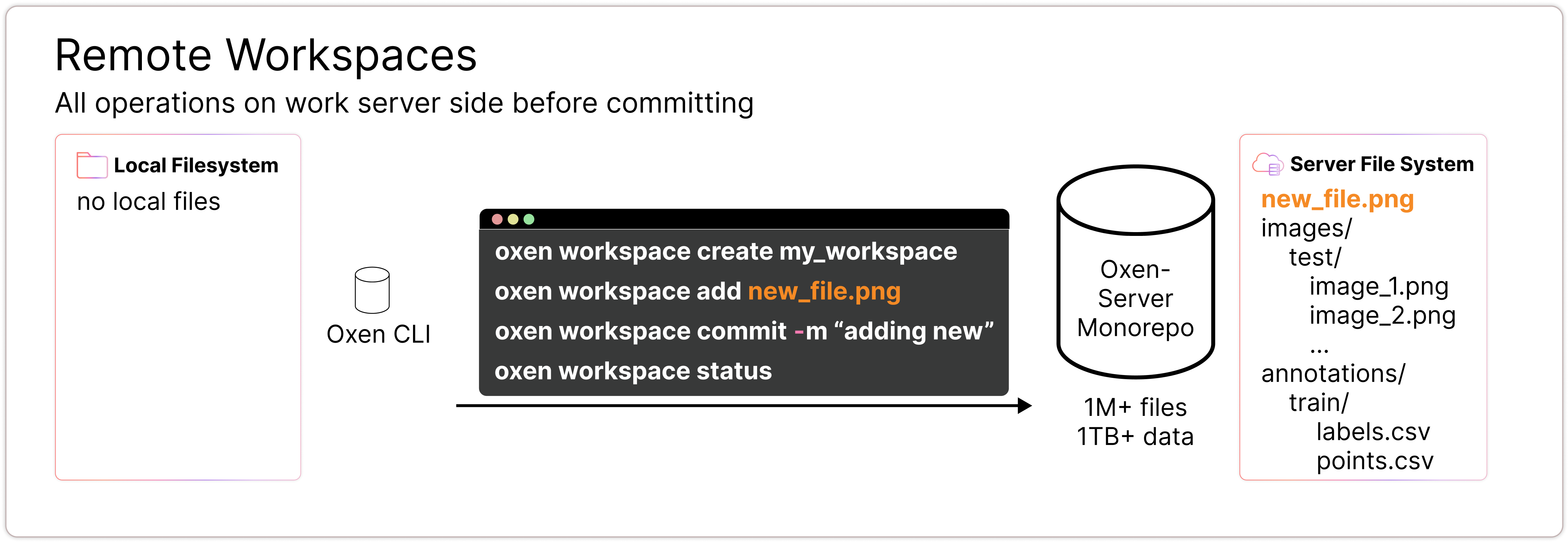 Staged data is durable but unversioned. It lives on the server, survives restarts of both your client and the server, and persists until the workspace is committed or deleted. It does not appear in the repository's commit history until you commit, so there is no log of staged edits, and deleting the workspace discards them without a trace.
When you commit a workspace:
1. Oxen applies your staged diff on top of the workspace's base commit to produce a new commit.
2. That new commit is added to a target branch on the remote (see [Committing changes](#committing-changes) for how the target is chosen).
3. If the target branch has advanced past the workspace's base commit, Oxen attempts to merge. Conflicts cause the commit to fail and you'll need to resolve them before retrying.
Because workspaces are commit-scoped, two workspaces created from the same branch at different times can see completely different views of the repo. This isolation is intentional, but it also means a long-lived workspace can drift from the branch tip and accumulate conflicts.
## Creating a workspace
A workspace is created against a remote repository and a branch. The second argument to the Python `Workspace` constructor is always the **branch**, not the workspace name.
```python Python theme={null}
from oxen import RemoteRepo
from oxen import Workspace
repo = RemoteRepo("ox/CatDogBBox")
workspace = Workspace(repo, "main", workspace_name="add-images")
```
```bash CLI theme={null}
oxen workspace create -n add-images -b main
```
```bash cURL theme={null}
curl -X PUT "https://hub.oxen.ai/api/repos/ox/CatDogBBox/workspaces/get_or_create" \
-H "Authorization: Bearer $TOKEN" \
-H "Content-Type: application/json" \
-d '{"branch_name": "main", "workspace_id": "add-images", "name": "add-images"}'
```
Python always requires the branch argument. The CLI defaults to your current local branch when you omit `--branch`. Over HTTP, `branch_name` is always required.
```python Python theme={null}
from oxen import RemoteRepo
from oxen import Workspace
repo = RemoteRepo("ox/CatDogBBox")
workspace = Workspace(repo, "main") # Unnamed workspace on main
```
```bash CLI theme={null}
oxen workspace create # Uses your current local branch; returns a workspace ID
```
The workspace is pinned to whatever commit the branch points at when you create it. For non-empty repositories, that branch must already exist on the remote.
### Named vs. unnamed workspaces
Every workspace has an **id**. You can optionally also give it a human-readable **name**. The CLI generates a UUID id on create; over HTTP you supply the id yourself.
```python Python theme={null}
from oxen import RemoteRepo
from oxen import Workspace
repo = RemoteRepo("ox/CatDogBBox")
workspace = Workspace(repo, "main", workspace_name="add-images")
```
```bash CLI theme={null}
oxen workspace create -n add-images
```
```bash cURL theme={null}
# name is optional, omit it for an unnamed workspace
curl -X PUT "https://hub.oxen.ai/api/repos/ox/CatDogBBox/workspaces/get_or_create" \
-H "Authorization: Bearer $TOKEN" \
-H "Content-Type: application/json" \
-d '{"branch_name": "main", "workspace_id": "add-images", "name": "add-images"}'
```
The name matters because of two behavioral differences:
| | Unnamed workspace | Named workspace |
| --------------------- | ----------------------------------- | --------------------------------------------------------------------------- |
| Lifetime after commit | Deleted | Persists, fast-forwarded to the new commit |
| Best for | One-shot imports, throwaway staging | Long-lived staging, app draft state, multi-commit or multi-client workflows |
Use a **named** workspace when you expect to make multiple commits from the same workspace, when several processes or users will share it, or when an application needs to find its staging area again after a restart (list the workspaces and match on name, or use the [get\_or\_create endpoint](#driving-workspaces-over-http)). Use an **unnamed** workspace for one-off imports where you don't need it to stick around.
### Identifying a workspace in CLI commands
Most workspace commands need to know which workspace you're targeting. You can reference a workspace by either its id or its name:
* `--workspace-id ` (short `-w`): the auto-generated id returned from `oxen workspace create`.
* `--workspace-name ` (short `-n`): the name you set with `--name` at create time.
## Listing workspaces
List the workspaces on a remote with `oxen workspace list`.
```bash CLI theme={null}
oxen workspace list -r my_remote # Defaults to `origin` if no remote is provided
```
```bash cURL theme={null}
curl "https://hub.oxen.ai/api/repos/ox/CatDogBBox/workspaces" \
-H "Authorization: Bearer $TOKEN"
```
## Adding files
`oxen workspace add` streams a file's contents directly to the server and stages it on the workspace.
```python Python theme={null}
from oxen import RemoteRepo
from oxen import Workspace
repo = RemoteRepo("ox/CatDogBBox")
workspace = Workspace(repo, "main", workspace_name="add-images")
workspace.add("/path/to/image.png")
status = workspace.status()
print(status.added_files())
```
```bash CLI theme={null}
oxen workspace add image.png -n add-images
oxen workspace status -n add-images
```
```bash cURL theme={null}
# Stage image.png into the images/ directory of the workspace
curl -X POST "https://hub.oxen.ai/api/repos/ox/CatDogBBox/workspaces/$WORKSPACE_ID/files/images" \
-H "Authorization: Bearer $TOKEN" \
-F "file=@image.png"
# See what's staged
curl "https://hub.oxen.ai/api/repos/ox/CatDogBBox/workspaces/$WORKSPACE_ID/changes" \
-H "Authorization: Bearer $TOKEN"
```
### Unstaging a file
To remove a file you've staged on the workspace (without touching the base repo), unstage it with `oxen workspace rm --staged`.
```bash CLI theme={null}
oxen workspace rm --staged image.jpg -n add-images
```
```python Python theme={null}
from oxen import RemoteRepo
from oxen import Workspace
repo = RemoteRepo("ox/CatDogBBox")
workspace = Workspace(repo, "main", workspace_name="add-images")
workspace.unstage("image.jpg") # Requires oxen > 0.53.0
```
```bash cURL theme={null}
curl -X DELETE "https://hub.oxen.ai/api/repos/ox/CatDogBBox/workspaces/$WORKSPACE_ID/changes/image.jpg" \
-H "Authorization: Bearer $TOKEN"
```
### Deleting a file from the base repo
`oxen workspace rm` **without** `--staged` stages a deletion of a file that exists in the base repo. When you commit the workspace, that file will be removed from the branch. Use `--staged` if you only want to unstage a previously added file.
```bash CLI theme={null}
oxen workspace rm image.jpg -n add-images
```
```bash cURL theme={null}
curl -X DELETE "https://hub.oxen.ai/api/repos/ox/CatDogBBox/workspaces/$WORKSPACE_ID/files" \
-H "Authorization: Bearer $TOKEN" \
-H "Content-Type: application/json" \
-d '["image.jpg"]'
```
The Python SDK does not expose staging a deletion yet. Despite the name, `Workspace.rm()` unstages a staged file, the same as `unstage()`. Use the CLI or the HTTP endpoint above to stage a removal from the base repo.
## Editing tabular files like a database
Staging isn't limited to whole files. When you open a tabular file (`csv`, `tsv`, `parquet`, `jsonl`, etc.) through the `DataFrame` class, Oxen indexes it into DuckDB inside a workspace. This gives you a queryable, editable database in an uncommitted state. You can insert, update, and delete individual rows and query with SQL, and nothing touches the branch until you commit.
`DataFrame("namespace/repo", "path")` creates a workspace under the hood (or reuses one if you pass a `Workspace` / `workspace_name`). You do not need to construct a `Workspace` yourself for the common case.
```python theme={null}
from oxen import DataFrame
# Connect to and index the data frame in a workspace
# Note: this must be an existing file committed to the repo;
# indexing may take a while for large files
data_frame = DataFrame("datasets/SpamOrHam", "data.tsv")
# Add a row (returns a stable row id)
row_id = data_frame.insert_row({"category": "spam", "message": "Hello, do I have an offer for you!"})
# Read it back
row = data_frame.get_row_by_id(row_id)
# Update and delete by row id
data_frame.update_row(row_id, {"category": "ham"})
data_frame.delete_row(row_id)
# Query the staged state with SQL
results = data_frame.query(sql="SELECT category, COUNT(*) FROM df GROUP BY category")
# Commit the edits, or call data_frame.restore() to discard them
data_frame.commit("Clean up spam labels")
```
This is the machinery behind editing datasets in the Oxen.ai UI and behind [building custom labeling tools](/features/labeling_data). Every cell edit, row insert, and row delete is a staged change in a workspace, batched up until someone commits. It also powers [embeddings search](/features/embeddings), which uses the same DuckDB index to query vector columns without committing.
Since workspaces are shared, an agent can insert rows all day while a human reviews the staged changes, and the dataset only gets a new commit when the batch is approved.
See the [DataFrame Python API](/python-api/data_frame) for the full interface.
## Committing changes
Commit a workspace to land its staged changes as a new commit on the remote.
```python Python theme={null}
from oxen import RemoteRepo
from oxen import Workspace
repo = RemoteRepo("ox/CatDogBBox")
workspace = Workspace(repo, "main", workspace_name="add-images")
# Optional second arg is the target BRANCH to commit onto
workspace.commit("adding an image using a workspace", "main")
```
```bash CLI theme={null}
oxen workspace commit -m "adding an image" -n add-images -b main
```
```bash cURL theme={null}
curl -X POST "https://hub.oxen.ai/api/repos/ox/CatDogBBox/workspaces/add-images/merge/main" \
-H "Authorization: Bearer $TOKEN" \
-H "Content-Type: application/json" \
-d '{"message": "adding an image", "author": "Bessie", "email": "bessie@oxen.ai"}'
```
If you don't provide a target branch, each interface picks a default. Note that the target branch must already exist on the remote, the server will never create one for you:
* **Python** commits to the branch the workspace was created from.
* **CLI** commits to your current local branch (and errors if you have no current branch).
* **HTTP** has no default, the target branch is always part of the URL.
```python Python theme={null}
from oxen import RemoteRepo
from oxen import Workspace
repo = RemoteRepo("ox/CatDogBBox")
workspace = Workspace(repo, "my-branch", workspace_name="add-images")
workspace.commit("adding an image using a workspace") # Defaults to my-branch
```
```bash CLI theme={null}
oxen workspace commit -m "adding an image" -n add-images # Commits to your current local branch
```
After a successful commit:
* An **unnamed** workspace is deleted.
* A **named** workspace is fast-forwarded to point at the new commit, so you can keep using it.
### Merge conflicts
The target branch advancing past the workspace's base commit is not a problem by itself. As long as the new commits on the branch touched different files, the workspace merges cleanly. A commit only fails with a "workspace is behind" error when a file you staged also changed on the target branch after the workspace was created.
There is no rebase command for a workspace. To recover from a conflict:
1. Create a fresh workspace, which will be pinned to the current tip of the branch.
2. Re-stage your changes there. For conflicted files, fetch the branch's current version first and re-apply your edits on top of it.
3. Commit the new workspace, and delete the stale one.
## Driving workspaces over HTTP
Everything above is a thin wrapper over the [Repository API](/http-api/index), which means a workspace can be the persistence layer of any application without installing the Oxen CLI or Python SDK. This section walks through the full lifecycle the way an app like a draft editor, labeling backend, or ingestion daemon would use it.
All requests are authenticated with your API key:
```bash theme={null}
export TOKEN=
export REPO=https://hub.oxen.ai/api/repos/ox/CatDogBBox
```
### 1. Get or create a named workspace
`get_or_create` returns an existing workspace when the id already exists, or when a workspace with the given `name` already exists; otherwise it creates one. Persist a stable `workspace_id` in your app (do not mint a fresh UUID on every boot), and pass a `name` so you can also find the workspace by listing.
Workspace paths accept either the id or the name, so you can use the same stable string for both in simple apps:
```bash theme={null}
export WORKSPACE_ID=draft-editor
curl -X PUT "$REPO/workspaces/get_or_create" \
-H "Authorization: Bearer $TOKEN" \
-H "Content-Type: application/json" \
-d '{"branch_name": "main", "workspace_id": "'"$WORKSPACE_ID"'", "name": "draft-editor"}'
```
To inspect what is already on the remote, list workspaces:
```bash theme={null}
curl "$REPO/workspaces" -H "Authorization: Bearer $TOKEN"
```
### 2. Stage a file
`POST` the file as multipart form data to a directory path inside the workspace. Staging on every save is cheap. Each write simply replaces the staged version of the file.
```bash theme={null}
curl -X POST "$REPO/workspaces/$WORKSPACE_ID/files/images" \
-H "Authorization: Bearer $TOKEN" \
-F "file=@image.jpg"
```
### 3. Read staged content back
`GET` the same path to read the staged version back before anything is committed. If the file isn't staged in the workspace, the request returns a 404 and you can fall back to the committed version on the branch:
```bash theme={null}
# The staged (workspace) version, i.e. the draft
curl "$REPO/workspaces/$WORKSPACE_ID/files/images/image.jpg" \
-H "Authorization: Bearer $TOKEN"
# The committed version on the branch, used as the fallback
curl "$REPO/file/main/images/image.jpg" \
-H "Authorization: Bearer $TOKEN"
```
### 4. List what's staged
The `changes` endpoint returns the workspace's staged additions, modifications, and removals. An app can rebuild its view of what is in draft from this endpoint after a restart.
```bash theme={null}
curl "$REPO/workspaces/$WORKSPACE_ID/changes" \
-H "Authorization: Bearer $TOKEN"
```
To unstage a single file without touching the base repo:
```bash theme={null}
curl -X DELETE "$REPO/workspaces/$WORKSPACE_ID/changes/images/image.jpg" \
-H "Authorization: Bearer $TOKEN"
```
To unstage several paths at once, `DELETE` the `changes` collection with a JSON body:
```bash theme={null}
curl -X DELETE "$REPO/workspaces/$WORKSPACE_ID/changes" \
-H "Authorization: Bearer $TOKEN" \
-H "Content-Type: application/json" \
-d '["images/image.jpg", "data/config.json"]'
```
### 5. Commit the workspace to a branch
When the user hits "publish" (or the batch is approved), merge the workspace into the target branch. All staged changes land as one commit.
```bash theme={null}
# Optional: check mergeability first
curl "$REPO/workspaces/$WORKSPACE_ID/merge/main" -H "Authorization: Bearer $TOKEN"
# Commit
curl -X POST "$REPO/workspaces/$WORKSPACE_ID/merge/main" \
-H "Authorization: Bearer $TOKEN" \
-H "Content-Type: application/json" \
-d '{"message": "Publish edits", "author": "Bessie", "email": "bessie@oxen.ai"}'
```
If a file you staged also changed on the branch, the commit fails with a "workspace is behind" conflict error. See [Merge conflicts](#merge-conflicts) for how to recover. After a successful commit, a named workspace fast-forwards to the new commit and you can start staging again from step 2. The same workspace can serve as the app's staging area indefinitely.
### 6. Clean up
Deleting a workspace permanently discards anything still staged in it:
```bash theme={null}
curl -X DELETE "$REPO/workspaces/$WORKSPACE_ID" -H "Authorization: Bearer $TOKEN"
```
The full endpoint reference, including batch file upload and the workspace data frame endpoints, lives in the [Repository API docs](/http-api/index).
## Example use cases
Workspaces are useful whenever committing on every write would be too noisy, too slow, or premature. The classic cases: editing a repository that's too large to clone, bulk-importing data without paying the disk cost of a local `.oxen` store, batching dozens of changes into one atomic commit, or letting several processes and users build up a staged batch together. If your repo is small enough to clone and the normal `add → commit → push` flow works for you, you don't need a workspace. See the [Version Control guide](/examples/data/versioning) instead.
Here are a few things you could build, to get your wheels turning:
* **A document editor.** Autosaves stage each edit to a named workspace, and reads fall back from the workspace to the committed branch, so drafts live on the server instead of in a database. Hitting "Publish" commits the workspace to `main` as one commit.
* **A data ingestion pipeline.** Workers append raw training examples into a shared workspace all day, then a reviewer fixes bad rows and commits one clean dataset version. This is how [Oxen.ai's labeling tools](/features/labeling_data) work under the hood.
* **An AI agent's scratchpad.** An agent writes files and edits data frames in a workspace while a human reviews the staged changes. Good runs become auditable commits, bad runs get deleted without touching history.
* **A review queue for community datasets.** Contributors upload images or rows to a shared workspace, like a pull request for data. A maintainer reviews the staged batch and commits it, so `main` only ever contains approved data.
* **An edge or sensor data buffer.** Devices push readings into a workspace all day. Committing hourly or daily gives you clean versioned snapshots instead of thousands of tiny commits.
* **A model evaluation harness.** Each eval run writes predictions and metrics into a workspace. Commit only the runs worth keeping, then diff commits to compare models over time.
* **A moderated media app.** User uploads land in a workspace where moderators can view them through the API. Approval is a commit, rejection is an unstage.
Staged data is durable but unversioned. It lives on the server, survives restarts of both your client and the server, and persists until the workspace is committed or deleted. It does not appear in the repository's commit history until you commit, so there is no log of staged edits, and deleting the workspace discards them without a trace.
When you commit a workspace:
1. Oxen applies your staged diff on top of the workspace's base commit to produce a new commit.
2. That new commit is added to a target branch on the remote (see [Committing changes](#committing-changes) for how the target is chosen).
3. If the target branch has advanced past the workspace's base commit, Oxen attempts to merge. Conflicts cause the commit to fail and you'll need to resolve them before retrying.
Because workspaces are commit-scoped, two workspaces created from the same branch at different times can see completely different views of the repo. This isolation is intentional, but it also means a long-lived workspace can drift from the branch tip and accumulate conflicts.
## Creating a workspace
A workspace is created against a remote repository and a branch. The second argument to the Python `Workspace` constructor is always the **branch**, not the workspace name.
```python Python theme={null}
from oxen import RemoteRepo
from oxen import Workspace
repo = RemoteRepo("ox/CatDogBBox")
workspace = Workspace(repo, "main", workspace_name="add-images")
```
```bash CLI theme={null}
oxen workspace create -n add-images -b main
```
```bash cURL theme={null}
curl -X PUT "https://hub.oxen.ai/api/repos/ox/CatDogBBox/workspaces/get_or_create" \
-H "Authorization: Bearer $TOKEN" \
-H "Content-Type: application/json" \
-d '{"branch_name": "main", "workspace_id": "add-images", "name": "add-images"}'
```
Python always requires the branch argument. The CLI defaults to your current local branch when you omit `--branch`. Over HTTP, `branch_name` is always required.
```python Python theme={null}
from oxen import RemoteRepo
from oxen import Workspace
repo = RemoteRepo("ox/CatDogBBox")
workspace = Workspace(repo, "main") # Unnamed workspace on main
```
```bash CLI theme={null}
oxen workspace create # Uses your current local branch; returns a workspace ID
```
The workspace is pinned to whatever commit the branch points at when you create it. For non-empty repositories, that branch must already exist on the remote.
### Named vs. unnamed workspaces
Every workspace has an **id**. You can optionally also give it a human-readable **name**. The CLI generates a UUID id on create; over HTTP you supply the id yourself.
```python Python theme={null}
from oxen import RemoteRepo
from oxen import Workspace
repo = RemoteRepo("ox/CatDogBBox")
workspace = Workspace(repo, "main", workspace_name="add-images")
```
```bash CLI theme={null}
oxen workspace create -n add-images
```
```bash cURL theme={null}
# name is optional, omit it for an unnamed workspace
curl -X PUT "https://hub.oxen.ai/api/repos/ox/CatDogBBox/workspaces/get_or_create" \
-H "Authorization: Bearer $TOKEN" \
-H "Content-Type: application/json" \
-d '{"branch_name": "main", "workspace_id": "add-images", "name": "add-images"}'
```
The name matters because of two behavioral differences:
| | Unnamed workspace | Named workspace |
| --------------------- | ----------------------------------- | --------------------------------------------------------------------------- |
| Lifetime after commit | Deleted | Persists, fast-forwarded to the new commit |
| Best for | One-shot imports, throwaway staging | Long-lived staging, app draft state, multi-commit or multi-client workflows |
Use a **named** workspace when you expect to make multiple commits from the same workspace, when several processes or users will share it, or when an application needs to find its staging area again after a restart (list the workspaces and match on name, or use the [get\_or\_create endpoint](#driving-workspaces-over-http)). Use an **unnamed** workspace for one-off imports where you don't need it to stick around.
### Identifying a workspace in CLI commands
Most workspace commands need to know which workspace you're targeting. You can reference a workspace by either its id or its name:
* `--workspace-id ` (short `-w`): the auto-generated id returned from `oxen workspace create`.
* `--workspace-name ` (short `-n`): the name you set with `--name` at create time.
## Listing workspaces
List the workspaces on a remote with `oxen workspace list`.
```bash CLI theme={null}
oxen workspace list -r my_remote # Defaults to `origin` if no remote is provided
```
```bash cURL theme={null}
curl "https://hub.oxen.ai/api/repos/ox/CatDogBBox/workspaces" \
-H "Authorization: Bearer $TOKEN"
```
## Adding files
`oxen workspace add` streams a file's contents directly to the server and stages it on the workspace.
```python Python theme={null}
from oxen import RemoteRepo
from oxen import Workspace
repo = RemoteRepo("ox/CatDogBBox")
workspace = Workspace(repo, "main", workspace_name="add-images")
workspace.add("/path/to/image.png")
status = workspace.status()
print(status.added_files())
```
```bash CLI theme={null}
oxen workspace add image.png -n add-images
oxen workspace status -n add-images
```
```bash cURL theme={null}
# Stage image.png into the images/ directory of the workspace
curl -X POST "https://hub.oxen.ai/api/repos/ox/CatDogBBox/workspaces/$WORKSPACE_ID/files/images" \
-H "Authorization: Bearer $TOKEN" \
-F "file=@image.png"
# See what's staged
curl "https://hub.oxen.ai/api/repos/ox/CatDogBBox/workspaces/$WORKSPACE_ID/changes" \
-H "Authorization: Bearer $TOKEN"
```
### Unstaging a file
To remove a file you've staged on the workspace (without touching the base repo), unstage it with `oxen workspace rm --staged`.
```bash CLI theme={null}
oxen workspace rm --staged image.jpg -n add-images
```
```python Python theme={null}
from oxen import RemoteRepo
from oxen import Workspace
repo = RemoteRepo("ox/CatDogBBox")
workspace = Workspace(repo, "main", workspace_name="add-images")
workspace.unstage("image.jpg") # Requires oxen > 0.53.0
```
```bash cURL theme={null}
curl -X DELETE "https://hub.oxen.ai/api/repos/ox/CatDogBBox/workspaces/$WORKSPACE_ID/changes/image.jpg" \
-H "Authorization: Bearer $TOKEN"
```
### Deleting a file from the base repo
`oxen workspace rm` **without** `--staged` stages a deletion of a file that exists in the base repo. When you commit the workspace, that file will be removed from the branch. Use `--staged` if you only want to unstage a previously added file.
```bash CLI theme={null}
oxen workspace rm image.jpg -n add-images
```
```bash cURL theme={null}
curl -X DELETE "https://hub.oxen.ai/api/repos/ox/CatDogBBox/workspaces/$WORKSPACE_ID/files" \
-H "Authorization: Bearer $TOKEN" \
-H "Content-Type: application/json" \
-d '["image.jpg"]'
```
The Python SDK does not expose staging a deletion yet. Despite the name, `Workspace.rm()` unstages a staged file, the same as `unstage()`. Use the CLI or the HTTP endpoint above to stage a removal from the base repo.
## Editing tabular files like a database
Staging isn't limited to whole files. When you open a tabular file (`csv`, `tsv`, `parquet`, `jsonl`, etc.) through the `DataFrame` class, Oxen indexes it into DuckDB inside a workspace. This gives you a queryable, editable database in an uncommitted state. You can insert, update, and delete individual rows and query with SQL, and nothing touches the branch until you commit.
`DataFrame("namespace/repo", "path")` creates a workspace under the hood (or reuses one if you pass a `Workspace` / `workspace_name`). You do not need to construct a `Workspace` yourself for the common case.
```python theme={null}
from oxen import DataFrame
# Connect to and index the data frame in a workspace
# Note: this must be an existing file committed to the repo;
# indexing may take a while for large files
data_frame = DataFrame("datasets/SpamOrHam", "data.tsv")
# Add a row (returns a stable row id)
row_id = data_frame.insert_row({"category": "spam", "message": "Hello, do I have an offer for you!"})
# Read it back
row = data_frame.get_row_by_id(row_id)
# Update and delete by row id
data_frame.update_row(row_id, {"category": "ham"})
data_frame.delete_row(row_id)
# Query the staged state with SQL
results = data_frame.query(sql="SELECT category, COUNT(*) FROM df GROUP BY category")
# Commit the edits, or call data_frame.restore() to discard them
data_frame.commit("Clean up spam labels")
```
This is the machinery behind editing datasets in the Oxen.ai UI and behind [building custom labeling tools](/features/labeling_data). Every cell edit, row insert, and row delete is a staged change in a workspace, batched up until someone commits. It also powers [embeddings search](/features/embeddings), which uses the same DuckDB index to query vector columns without committing.
Since workspaces are shared, an agent can insert rows all day while a human reviews the staged changes, and the dataset only gets a new commit when the batch is approved.
See the [DataFrame Python API](/python-api/data_frame) for the full interface.
## Committing changes
Commit a workspace to land its staged changes as a new commit on the remote.
```python Python theme={null}
from oxen import RemoteRepo
from oxen import Workspace
repo = RemoteRepo("ox/CatDogBBox")
workspace = Workspace(repo, "main", workspace_name="add-images")
# Optional second arg is the target BRANCH to commit onto
workspace.commit("adding an image using a workspace", "main")
```
```bash CLI theme={null}
oxen workspace commit -m "adding an image" -n add-images -b main
```
```bash cURL theme={null}
curl -X POST "https://hub.oxen.ai/api/repos/ox/CatDogBBox/workspaces/add-images/merge/main" \
-H "Authorization: Bearer $TOKEN" \
-H "Content-Type: application/json" \
-d '{"message": "adding an image", "author": "Bessie", "email": "bessie@oxen.ai"}'
```
If you don't provide a target branch, each interface picks a default. Note that the target branch must already exist on the remote, the server will never create one for you:
* **Python** commits to the branch the workspace was created from.
* **CLI** commits to your current local branch (and errors if you have no current branch).
* **HTTP** has no default, the target branch is always part of the URL.
```python Python theme={null}
from oxen import RemoteRepo
from oxen import Workspace
repo = RemoteRepo("ox/CatDogBBox")
workspace = Workspace(repo, "my-branch", workspace_name="add-images")
workspace.commit("adding an image using a workspace") # Defaults to my-branch
```
```bash CLI theme={null}
oxen workspace commit -m "adding an image" -n add-images # Commits to your current local branch
```
After a successful commit:
* An **unnamed** workspace is deleted.
* A **named** workspace is fast-forwarded to point at the new commit, so you can keep using it.
### Merge conflicts
The target branch advancing past the workspace's base commit is not a problem by itself. As long as the new commits on the branch touched different files, the workspace merges cleanly. A commit only fails with a "workspace is behind" error when a file you staged also changed on the target branch after the workspace was created.
There is no rebase command for a workspace. To recover from a conflict:
1. Create a fresh workspace, which will be pinned to the current tip of the branch.
2. Re-stage your changes there. For conflicted files, fetch the branch's current version first and re-apply your edits on top of it.
3. Commit the new workspace, and delete the stale one.
## Driving workspaces over HTTP
Everything above is a thin wrapper over the [Repository API](/http-api/index), which means a workspace can be the persistence layer of any application without installing the Oxen CLI or Python SDK. This section walks through the full lifecycle the way an app like a draft editor, labeling backend, or ingestion daemon would use it.
All requests are authenticated with your API key:
```bash theme={null}
export TOKEN=
export REPO=https://hub.oxen.ai/api/repos/ox/CatDogBBox
```
### 1. Get or create a named workspace
`get_or_create` returns an existing workspace when the id already exists, or when a workspace with the given `name` already exists; otherwise it creates one. Persist a stable `workspace_id` in your app (do not mint a fresh UUID on every boot), and pass a `name` so you can also find the workspace by listing.
Workspace paths accept either the id or the name, so you can use the same stable string for both in simple apps:
```bash theme={null}
export WORKSPACE_ID=draft-editor
curl -X PUT "$REPO/workspaces/get_or_create" \
-H "Authorization: Bearer $TOKEN" \
-H "Content-Type: application/json" \
-d '{"branch_name": "main", "workspace_id": "'"$WORKSPACE_ID"'", "name": "draft-editor"}'
```
To inspect what is already on the remote, list workspaces:
```bash theme={null}
curl "$REPO/workspaces" -H "Authorization: Bearer $TOKEN"
```
### 2. Stage a file
`POST` the file as multipart form data to a directory path inside the workspace. Staging on every save is cheap. Each write simply replaces the staged version of the file.
```bash theme={null}
curl -X POST "$REPO/workspaces/$WORKSPACE_ID/files/images" \
-H "Authorization: Bearer $TOKEN" \
-F "file=@image.jpg"
```
### 3. Read staged content back
`GET` the same path to read the staged version back before anything is committed. If the file isn't staged in the workspace, the request returns a 404 and you can fall back to the committed version on the branch:
```bash theme={null}
# The staged (workspace) version, i.e. the draft
curl "$REPO/workspaces/$WORKSPACE_ID/files/images/image.jpg" \
-H "Authorization: Bearer $TOKEN"
# The committed version on the branch, used as the fallback
curl "$REPO/file/main/images/image.jpg" \
-H "Authorization: Bearer $TOKEN"
```
### 4. List what's staged
The `changes` endpoint returns the workspace's staged additions, modifications, and removals. An app can rebuild its view of what is in draft from this endpoint after a restart.
```bash theme={null}
curl "$REPO/workspaces/$WORKSPACE_ID/changes" \
-H "Authorization: Bearer $TOKEN"
```
To unstage a single file without touching the base repo:
```bash theme={null}
curl -X DELETE "$REPO/workspaces/$WORKSPACE_ID/changes/images/image.jpg" \
-H "Authorization: Bearer $TOKEN"
```
To unstage several paths at once, `DELETE` the `changes` collection with a JSON body:
```bash theme={null}
curl -X DELETE "$REPO/workspaces/$WORKSPACE_ID/changes" \
-H "Authorization: Bearer $TOKEN" \
-H "Content-Type: application/json" \
-d '["images/image.jpg", "data/config.json"]'
```
### 5. Commit the workspace to a branch
When the user hits "publish" (or the batch is approved), merge the workspace into the target branch. All staged changes land as one commit.
```bash theme={null}
# Optional: check mergeability first
curl "$REPO/workspaces/$WORKSPACE_ID/merge/main" -H "Authorization: Bearer $TOKEN"
# Commit
curl -X POST "$REPO/workspaces/$WORKSPACE_ID/merge/main" \
-H "Authorization: Bearer $TOKEN" \
-H "Content-Type: application/json" \
-d '{"message": "Publish edits", "author": "Bessie", "email": "bessie@oxen.ai"}'
```
If a file you staged also changed on the branch, the commit fails with a "workspace is behind" conflict error. See [Merge conflicts](#merge-conflicts) for how to recover. After a successful commit, a named workspace fast-forwards to the new commit and you can start staging again from step 2. The same workspace can serve as the app's staging area indefinitely.
### 6. Clean up
Deleting a workspace permanently discards anything still staged in it:
```bash theme={null}
curl -X DELETE "$REPO/workspaces/$WORKSPACE_ID" -H "Authorization: Bearer $TOKEN"
```
The full endpoint reference, including batch file upload and the workspace data frame endpoints, lives in the [Repository API docs](/http-api/index).
## Example use cases
Workspaces are useful whenever committing on every write would be too noisy, too slow, or premature. The classic cases: editing a repository that's too large to clone, bulk-importing data without paying the disk cost of a local `.oxen` store, batching dozens of changes into one atomic commit, or letting several processes and users build up a staged batch together. If your repo is small enough to clone and the normal `add → commit → push` flow works for you, you don't need a workspace. See the [Version Control guide](/examples/data/versioning) instead.
Here are a few things you could build, to get your wheels turning:
* **A document editor.** Autosaves stage each edit to a named workspace, and reads fall back from the workspace to the committed branch, so drafts live on the server instead of in a database. Hitting "Publish" commits the workspace to `main` as one commit.
* **A data ingestion pipeline.** Workers append raw training examples into a shared workspace all day, then a reviewer fixes bad rows and commits one clean dataset version. This is how [Oxen.ai's labeling tools](/features/labeling_data) work under the hood.
* **An AI agent's scratchpad.** An agent writes files and edits data frames in a workspace while a human reviews the staged changes. Good runs become auditable commits, bad runs get deleted without touching history.
* **A review queue for community datasets.** Contributors upload images or rows to a shared workspace, like a pull request for data. A maintainer reviews the staged batch and commits it, so `main` only ever contains approved data.
* **An edge or sensor data buffer.** Devices push readings into a workspace all day. Committing hourly or daily gives you clean versioned snapshots instead of thousands of tiny commits.
* **A model evaluation harness.** Each eval run writes predictions and metrics into a workspace. Commit only the runs worth keeping, then diff commits to compare models over time.
* **A moderated media app.** User uploads land in a workspace where moderators can view them through the API. Approval is a commit, rejection is an unstage.